Save a Document as PDF with Built-In Options
Create a PDF using Microsoft Office export or the macOS print dialog, then check the output before sharing it.
On this page
Prefer the app’s PDF export; on Mac, the Print dialog can also save a PDF
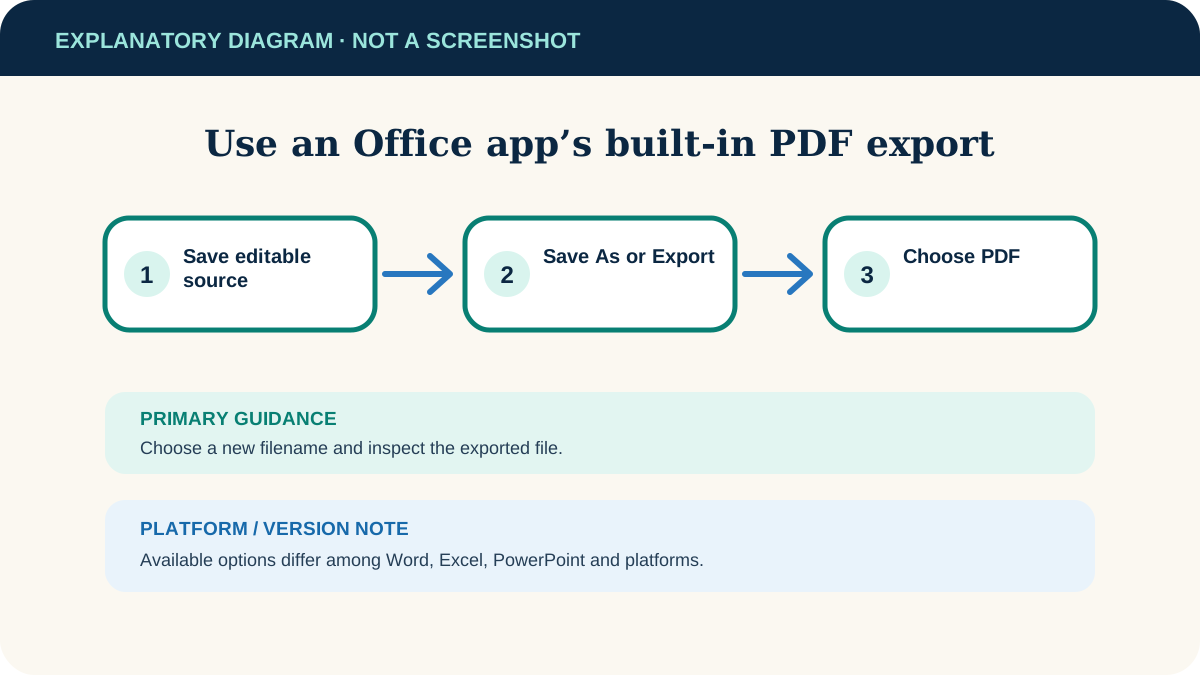
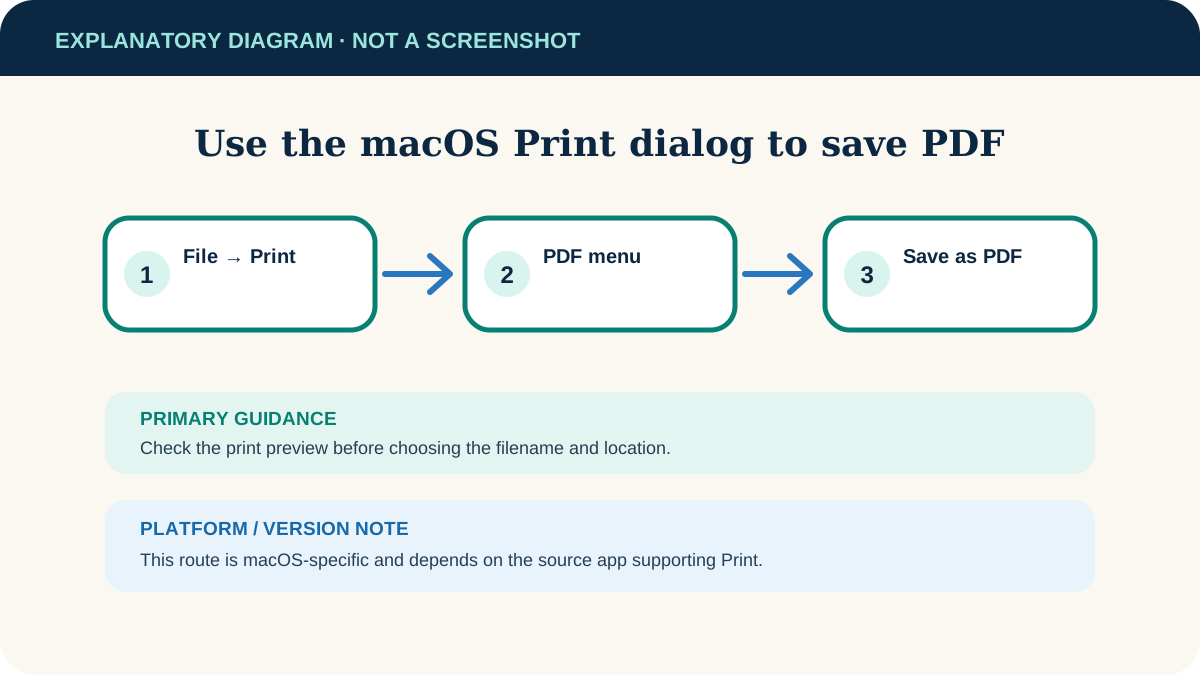
In a desktop Microsoft Office app, choose File → Save As or Export and select PDF. On macOS, an app that supports printing can use File → Print → PDF → Save as PDF. Save a new file, then open and inspect it.
Current Microsoft Office desktop apps on Windows or macOS, plus the built-in macOS print dialog. Other apps may use different labels.
Researched from official software documentation; not independently tested across every platform, application version or paid plan. In-step visuals are labelled explanatory diagrams, not application screenshots.
Export from a Microsoft Office desktop app
- 1
Finish and save the source
Save the Word, Excel or PowerPoint file in its editable format first.
- 2
Open the PDF command
Choose File → Save As or File → Export, depending on the app and platform.
- 3
Choose PDF
Select PDF from the file type or export options. Choose a new filename and a known folder.
- 4
Review options
If offered, select the intended page range, document properties and quality. Choose settings appropriate for screen sharing or print.
- 5
Publish or save
Complete the export, then open the resulting PDF in a PDF reader rather than assuming it matches.
Save from the macOS Print dialog
- 1
Open Print
In the source app, choose File → Print. Confirm the preview contains the intended pages.
- 2
Open the PDF menu
At the bottom of the print dialog, select PDF, then Save as PDF.
- 3
Name and save the file
Choose a filename and location. Add title, author or security options only when they are appropriate and understood.
- 4
Inspect the result
Open the saved PDF and check page count, page breaks, links, images and selectable text.
Keep the editable source separate
Use a new PDF filename and retain the original Office or source document. Future corrections belong in the editable file; exporting again is safer than trying to reconstruct a complex source from a PDF.
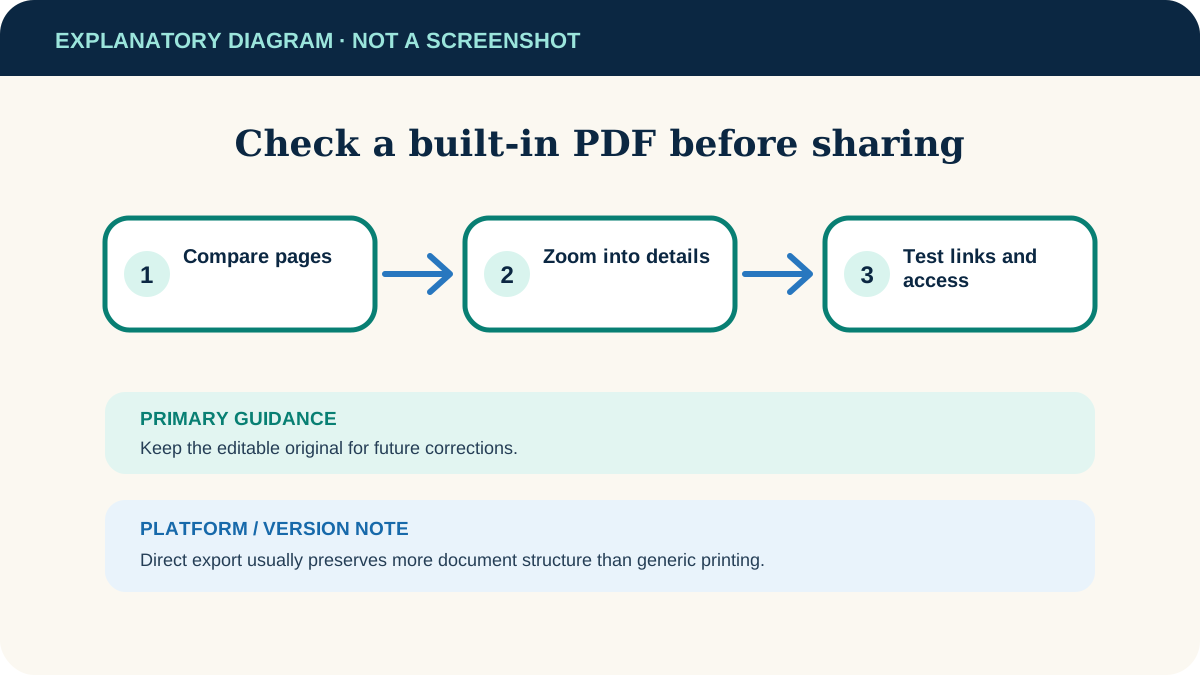
Check the PDF before sharing
- Compare the first and last pages with the editable source.
- Zoom in on small text, charts and images to check legibility.
- Test links, bookmarks, forms and accessibility if recipients depend on them.
- Use the selected-pages printing guide when only part of the PDF should be printed.
Fonts or lines move
Use the app’s direct export rather than a generic print route, update the app and confirm the source fonts are available.
The PDF is too large
Try the app’s smaller-file or online-quality option, but recheck image and print quality afterward.
No PDF option appears
Confirm the desktop app and operating system are within this guide’s scope. Use that app’s official help rather than an unknown converter.
The file contains sensitive information
Review comments, tracked changes, hidden sheets/slides and document properties before export; visible output is not the only possible metadata.
Useful next steps
These related tasks often come before or after this one:
- Save a Word Document as a PDF Without Changing the Original for the next related task.
- Print Selected PDF Pages in Adobe Acrobat Reader for the next related task.
Official sources
These instructions were checked against the following first-party documentation on October 12, 2026.