Print Selected PDF Pages in Adobe Acrobat Reader
Print the current page, individual pages or a page range from Adobe Acrobat Reader while checking page labels, orientation and preview.
On this page
Enter the pages you need in the Pages field and check the preview
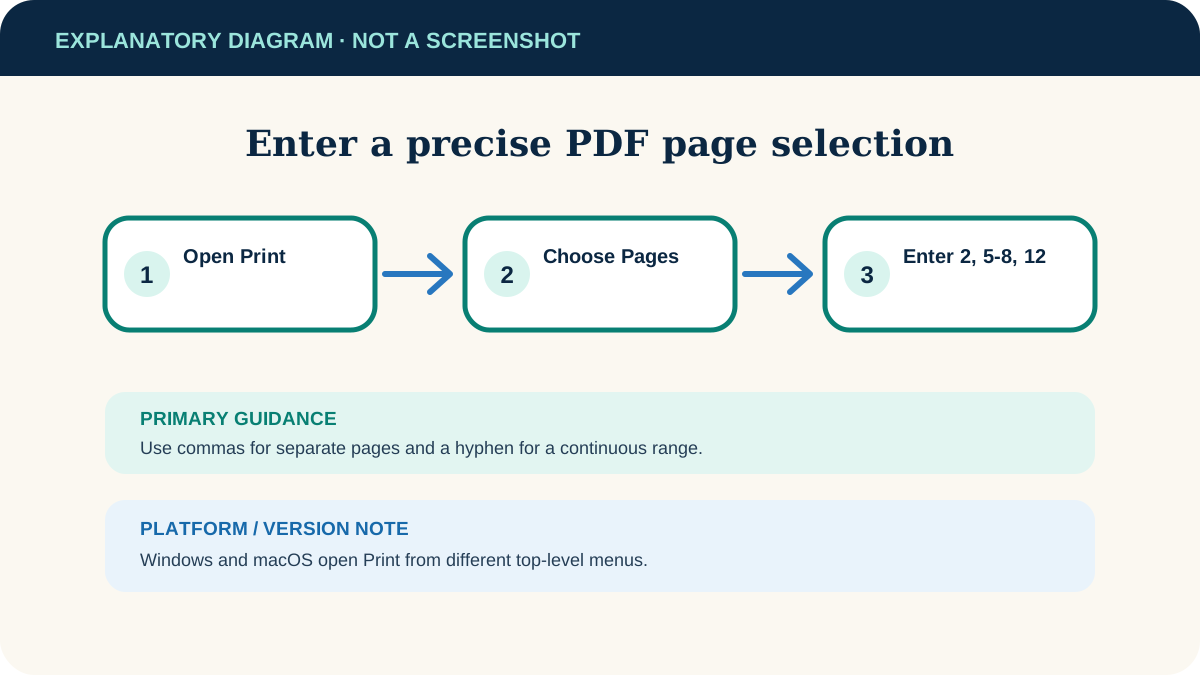
Open the PDF in Acrobat Reader and choose Print. Under Pages to Print, select Pages, enter a range such as 2-5 or separate pages such as 2, 5, 8, then verify the preview before selecting Print.
Adobe Acrobat Reader desktop on Windows or macOS with an installed printer.
Researched from official software documentation; not independently tested across every platform, application version or paid plan. In-step visuals are labelled explanatory diagrams, not application screenshots.
Choose individual pages or a range
- 1
Open the Print dialog
Open the PDF, then choose Menu → Print on Windows or File → Print on macOS.
- 2
Choose the printer
Confirm its exact name and status before configuring pages.
- 3
Set Pages to Print
Choose Current page for the visible page, or Pages to enter specific pages and ranges.
- 4
Enter the selection
Use commas between separate pages and a hyphen for a range—for example 2, 5-8, 12.
- 5
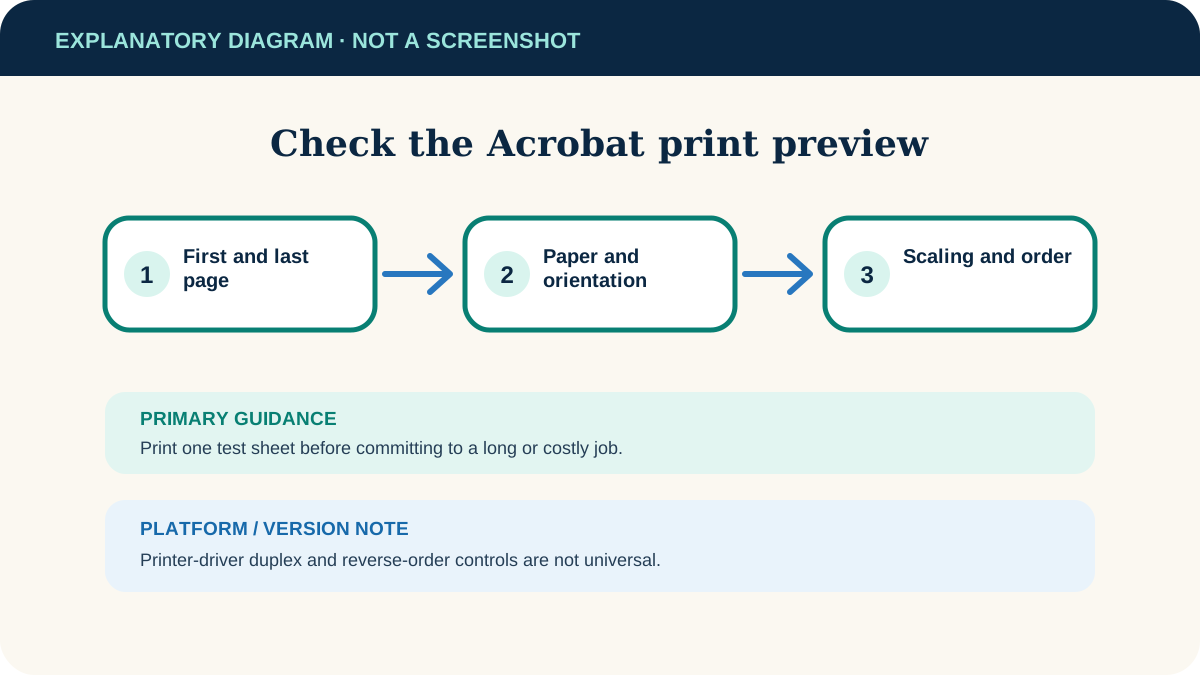
Inspect the preview
Move through the preview and confirm the first page, last page, orientation, paper size and scaling.
- 6
Print a small test
For a large job, print the first selected sheet, inspect it and only then send the full selection.
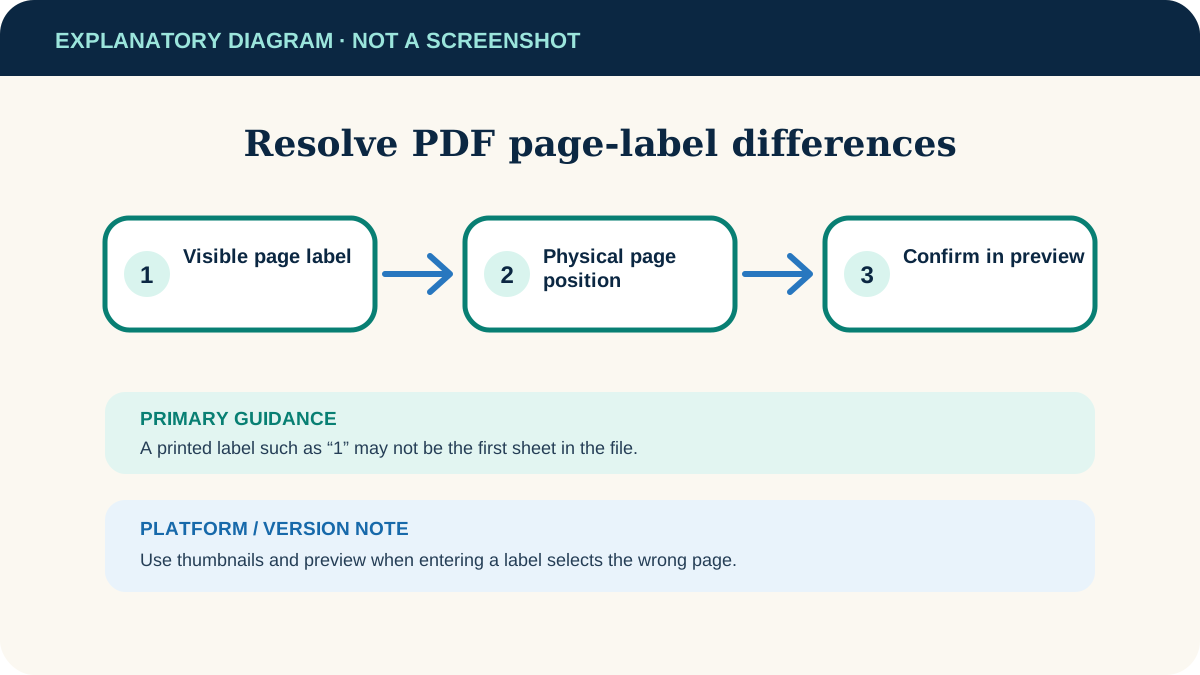
Resolve page-number mismatches
A PDF can use printed labels such as i, ii, 1 while Acrobat also tracks physical page positions. If entering a visible number selects the wrong sheet, use the thumbnail pane and preview to identify the intended page. Adobe’s print controls can offer options based on the document’s logical page numbers.
Check duplex and page order before a long job
If you enable two-sided printing or reverse order, use the preview and a two-page test first. Printer drivers interpret flipping and output order differently, so confirm how the physical sheets emerge before printing the complete range.
If the wrong pages or layout print
Every page prints
Reopen Print and confirm Pages—not All—is selected, then re-enter the range.
Pages are cropped
Check the preview’s Size options, paper size and orientation. “Actual size” can crop a page larger than the paper.
The printer produces nothing
Save the PDF, close duplicate print dialogs and use the Windows print-queue guide if a job is stuck.
The document forbids printing
Check Document Properties for security restrictions and request an authorised printable copy from the owner.
Useful next steps
These related tasks often come before or after this one:
- Clear a Stuck Print Queue in Windows 11 for the next related task.
- Combine PDF Files in Adobe Acrobat and Put Pages in the Right Order for the next related task.
Official sources
These instructions were checked against the following first-party documentation on October 12, 2026.