Save a Word Document as a PDF Without Changing the Original
Export a copy from desktop Word, choose standard or minimum size, check links and layout, and keep the editable Word file intact.

On this page
Use Save As or Export and choose PDF as the file type
In desktop Word, open File → Save As or File → Export, choose a location, select PDF as the file type and save with a new filename. Open the resulting PDF and inspect every page before sending it. The .docx original remains editable.
Microsoft Word desktop on Windows or macOS. Word for the web and mobile apps use different download/share menus.
Researched from official software documentation; not independently tested across every platform, application version or paid plan. In-step visuals are labelled explanatory diagrams, not application screenshots.
Prepare the Word document before export
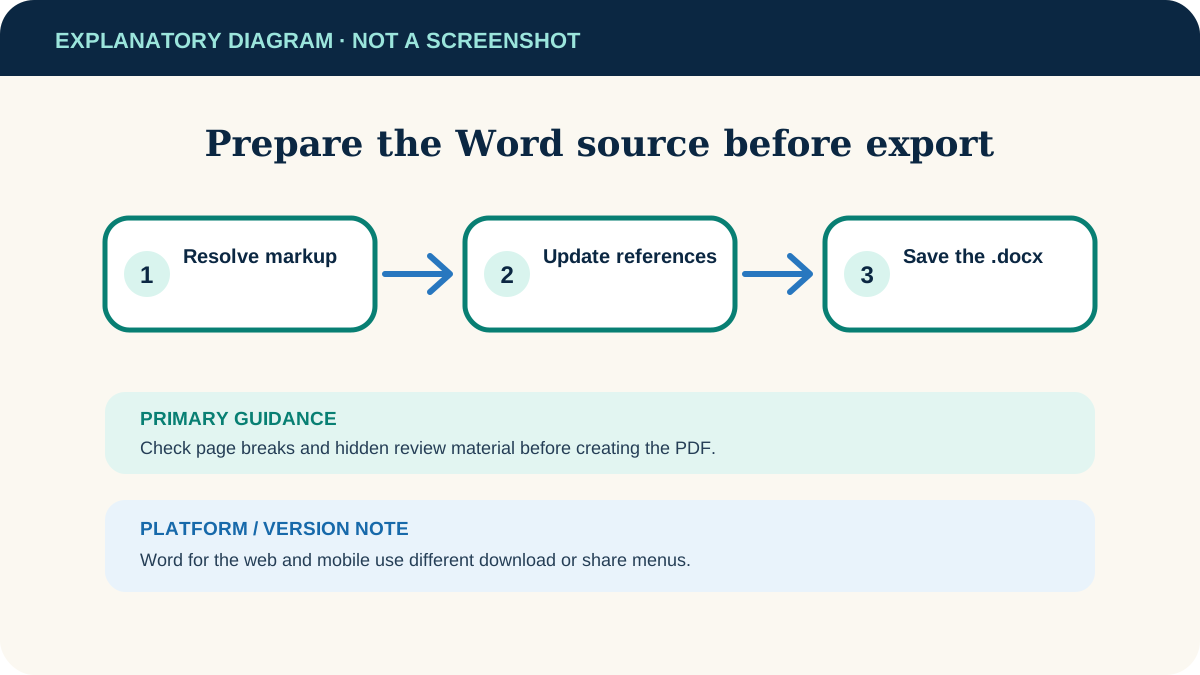
- Resolve tracked changes and comments if the recipient should not see revision history or markup.
- Update the table of contents, captions and cross-references so page numbers match the final layout.
- Use Print Preview to catch blank pages, cropped tables and unexpected page breaks.
- Save the .docx source before creating the PDF, preferably with a clear version name.
Create the PDF copy
- 1
Open the save or export flow
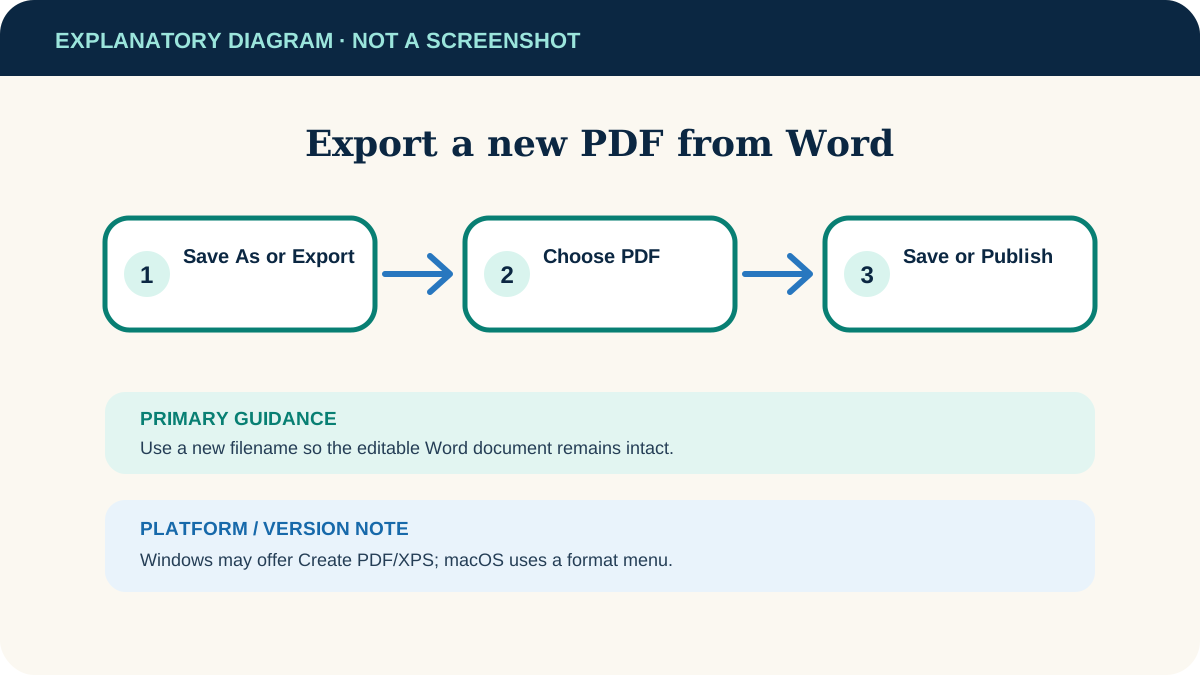
Choose File → Save As and browse to a folder, or use File → Export → Create PDF/XPS where available.
- 2
Choose PDF
Set the file type or format to PDF. Use a filename that distinguishes the final output from the editable document.
- 3
Choose output quality
Select Standard for typical reading and printing. Choose Minimum size only when smaller output matters more than image quality.
- 4
Review options
If you need only certain pages, bookmarks or document properties, open Options and select deliberately. Do not assume hidden content is excluded without checking.
- 5
Save the PDF
Choose Save or Publish. Leave “Open file after publishing” enabled if offered so you can inspect the result immediately.
Check the PDF before sharing
- 1
Open the actual PDF
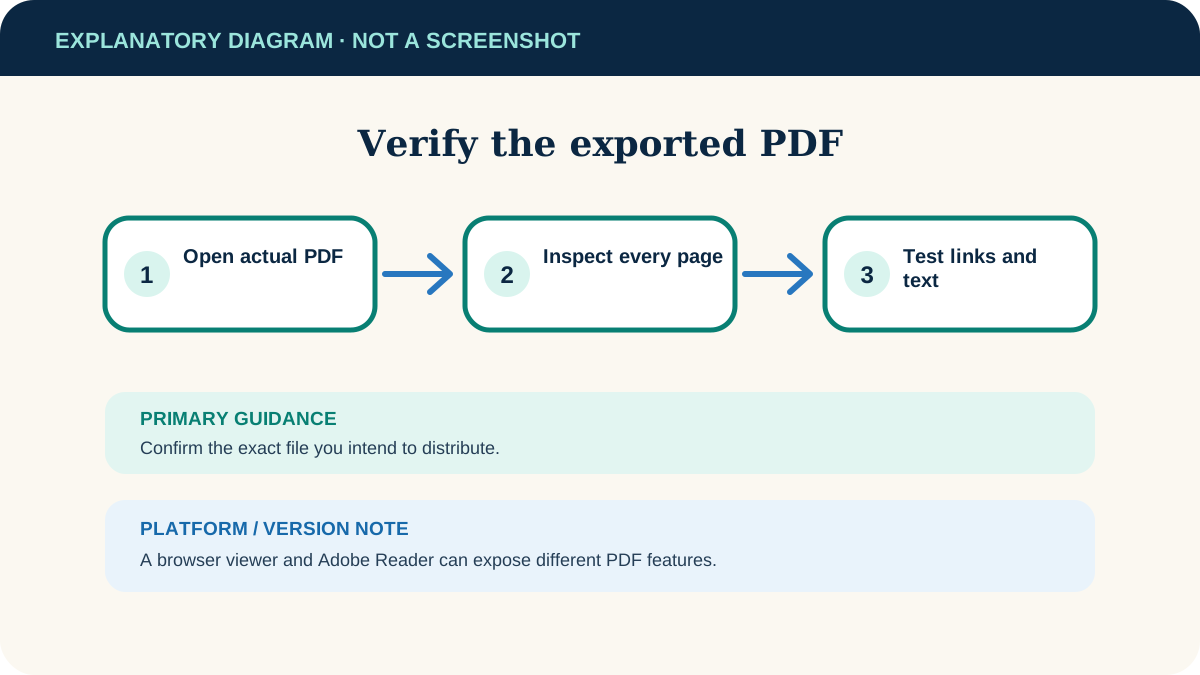
Use a PDF reader, not Word’s original editing view. Confirm the filename and folder so you are checking the file you will send.
- 2
Inspect every page
Check page breaks, margins, images, headers, footers, tables, symbols and blank pages.
- 3
Test links and selection
Open important links. Try selecting text to confirm it is text rather than an unexpected flat image.
- 4
Check the file size
A large document with high-resolution pictures can produce a large PDF. Return to Word to compress appropriate images or choose a smaller export setting rather than using an unknown upload service.
- 5
Keep the source
Retain the .docx file for future edits. Store the PDF as the distribution copy and regenerate it after any source change.
Fix common export problems
Fonts or layout change
Use well-supported fonts, confirm the fonts are licensed for embedding and check Word’s PDF options. Re-export on the computer where the document displays correctly.
Links do not work
Create links with Word’s hyperlink tool instead of relying on plain typed text. Re-export and test the exact PDF.
The PDF is too large
Compress appropriate images in a copy of the Word document or choose the minimum-size option. Inspect image clarity afterward.
Comments appear unexpectedly
Check the Print/Options setting for document versus document showing markup. Remove or resolve comments in a copy when they should not be distributed.
The recipient needs to edit
Send the Word source only when editing is intended and appropriate. A PDF is designed for stable sharing, not full-fidelity Word editing.
Useful next steps
These related tasks often come before or after this one:
- Combine the exported PDF with other documents when the Word file is one part of a larger packet.
- Clear a stuck Windows print queue if the PDF is ready but the printer job will not complete.
Official sources
These instructions were checked against the following first-party documentation on October 12, 2026.