Combine PDF Files in Adobe Acrobat and Put Pages in the Right Order
Add files in desktop Acrobat, expand multi-page documents, reorder or remove pages and save a new combined PDF without overwriting the sources.
On this page
Use Combine files, arrange thumbnails, then save a new PDF
In desktop Adobe Acrobat, choose Menu → Combine files on Windows or File → Combine files on macOS. Add the source files, drag thumbnails into order, expand multi-page files if necessary, remove unwanted pages and select Combine. Save the result with a new name.
Current Adobe Acrobat desktop for Windows or macOS. Feature availability can depend on the installed Acrobat plan; Reader alone may not include Combine files.
Researched from official software documentation; not independently tested across every platform, application version or paid plan. In-step visuals are labelled explanatory diagrams, not application screenshots.
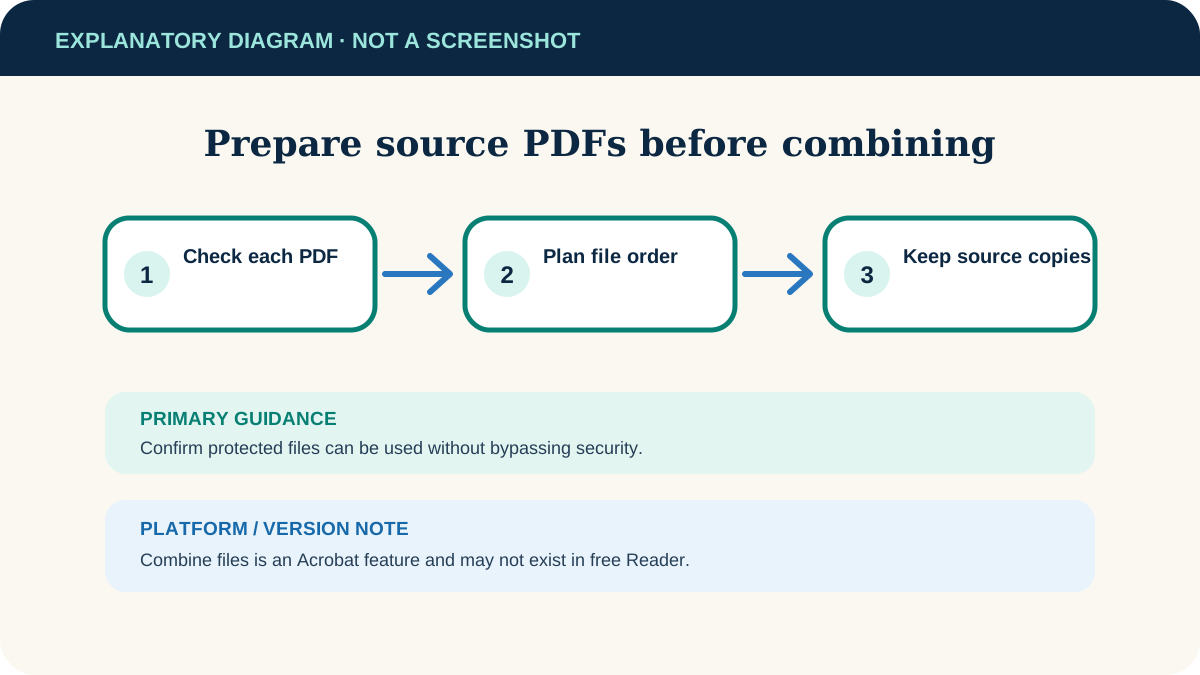
Prepare the source files
- Put the source PDFs in one working folder and give them descriptive names.
- Open each file to confirm it is readable, complete and not password-protected in a way that prevents combining.
- Decide the document order before starting; a numbered list is useful for a large packet.
- Make a copy of irreplaceable originals. Combining should create a new file, but a separate backup protects against later mistakes.
Combine the files in desktop Acrobat
- 1
Open Combine files
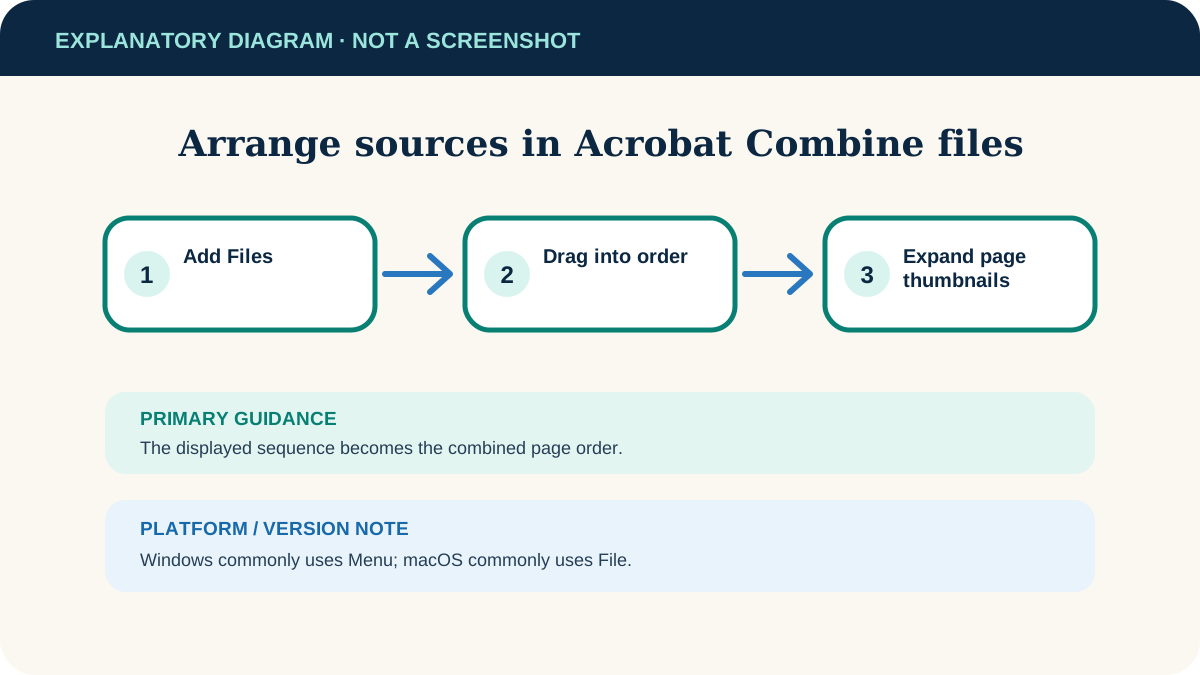
On Windows, choose Menu → Combine files. On macOS, choose File → Combine files.
- 2
Add the sources
Select Add Files and choose the documents, or drag them into the Combine files window. Files already open may be included automatically.
- 3
Set the document order
Drag file thumbnails into the intended sequence. The left-to-right or top-to-bottom order becomes the page order in the combined output.
- 4
Inspect individual pages
Hover over a multi-page file and use its expand control. Reorder page thumbnails or remove pages that should not be included.
- 5
Combine
Select Combine in the upper-right. Acrobat creates and opens a new PDF from the arranged sources.
- 6
Save as a new file
Give the combined PDF a descriptive filename and save it in a known folder. Do not use an original source filename.
Check the combined document
- 1
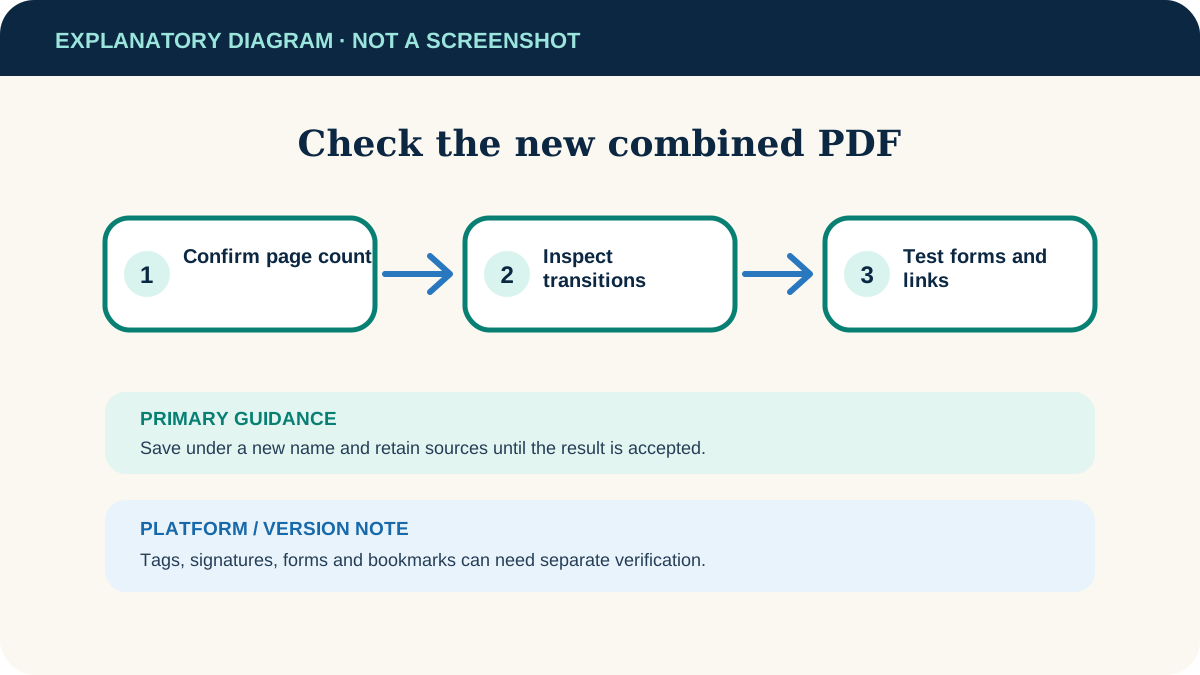
Confirm the total page count
Compare it with the planned sources, allowing for any pages you deliberately removed.
- 2
Scan every transition
Check the last page of one source and the first of the next. This catches reversed files and duplicated cover pages quickly.
- 3
Test navigation and forms
Bookmarks, links, form fields and signatures can behave differently after combining. Test anything the recipient must use.
- 4
Inspect accessibility
Combining tagged PDFs does not guarantee a logical combined tag structure or reading order. If accessibility is required, validate and remediate the result in the appropriate Acrobat tools.
- 5
Keep sources until accepted
Retain the originals until the combined document has been reviewed and delivered successfully.
If Combine files is missing or fails
The command is not available
Check which Acrobat product and subscription is signed in. Adobe documents Combine files as an Acrobat feature; the free Reader may not provide it.
A secured PDF is rejected
Ask the owner for an authorised unlocked copy. Do not try to bypass document security.
The web version is your only option
Adobe Acrobat on the web uploads selected files and saves the result to Adobe cloud storage. Use it only when that storage path is acceptable for the documents.
The result is too large
Acrobat offers file-size options and Reduce File Size tools. Smaller settings may downsample images, so inspect legibility and print quality afterward.
Pages are sideways or misplaced
Use Organize pages on the combined copy to rotate or drag thumbnails, then save. Keep the initial combined version until the correction is confirmed.
Useful next steps
These related tasks often come before or after this one:
- Export a Word document as a PDF before adding that document to the combined file.
- Scan paper pages to PDF with Google Drive when a paper original must become one of the source files.
Official sources
These instructions were checked against the following first-party documentation on October 12, 2026.