Review and Change App Permissions on Android
Check which Android apps can use your camera, microphone, location and files, then change access without deleting app data.
On this page
Open the app’s Permissions page and allow only what its task needs
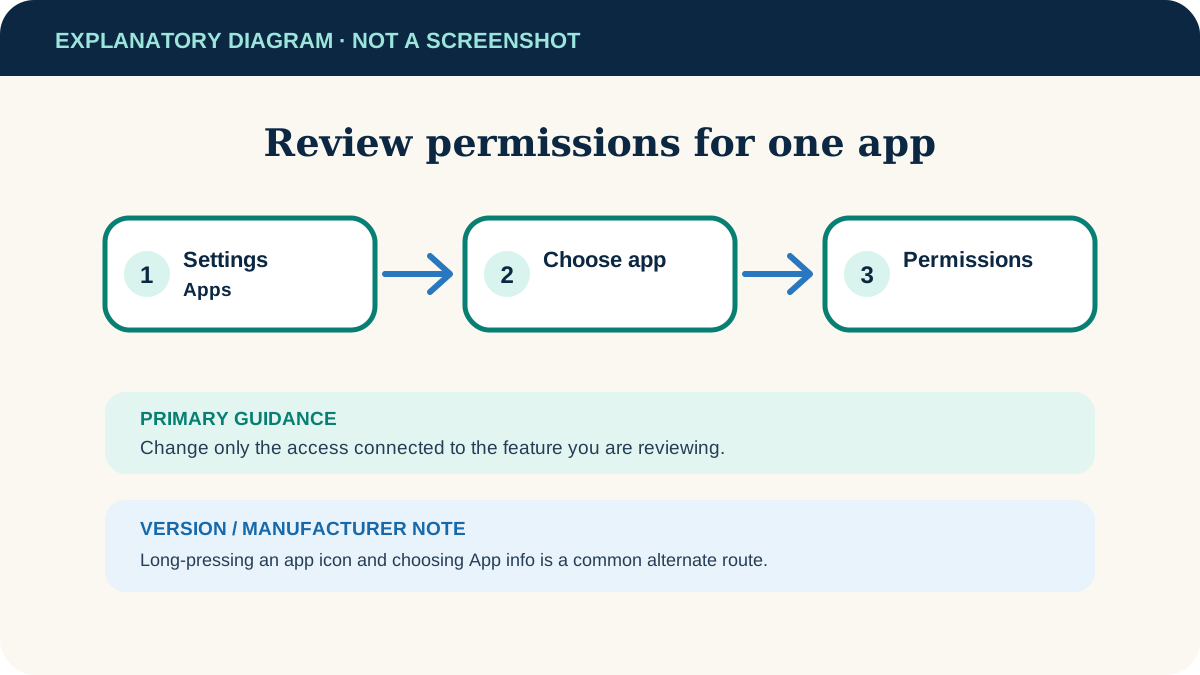
Open Settings → Apps, select the app, then choose Permissions. Select a permission and choose an available level such as Allow only while using the app, Ask every time or Don’t allow.
Current Android phones and tablets. Menu names and available choices vary by Android version and manufacturer.
Researched from official documentation; not independently tested across Android manufacturers. In-step visuals are labelled explanatory diagrams, not Android screenshots.
Review permissions for one app
- 1
Open the app list
Go to Settings → Apps. If needed, select the option that shows all installed apps.
- 2
Choose the app
Select its exact name, then choose Permissions.
- 3
Inspect allowed and denied access
Android groups permissions by their current state. Select Camera, Microphone, Location or another entry to see available choices.
- 4
Choose the narrowest useful access
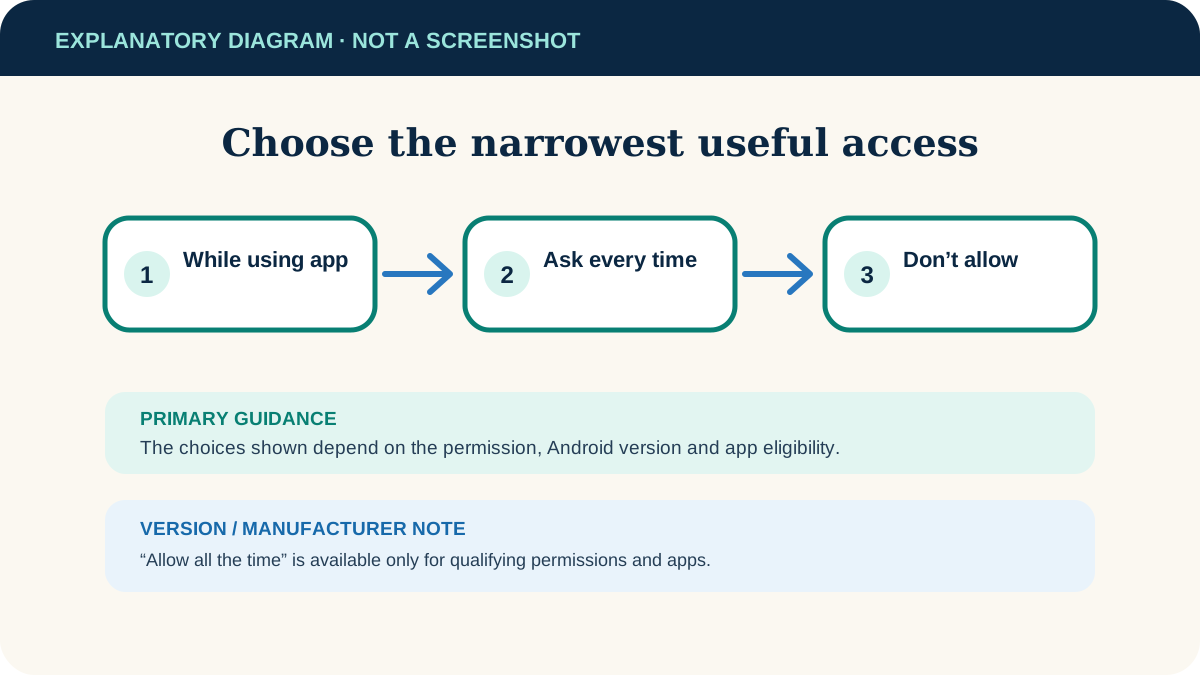
When offered, prefer access only while using the app or ask every time. Select Don’t allow when the app does not need the feature.
- 5
Test the feature
Return to the app and try the feature that needs the permission. Restore only the specific access required if it no longer works.
Find every app using one permission
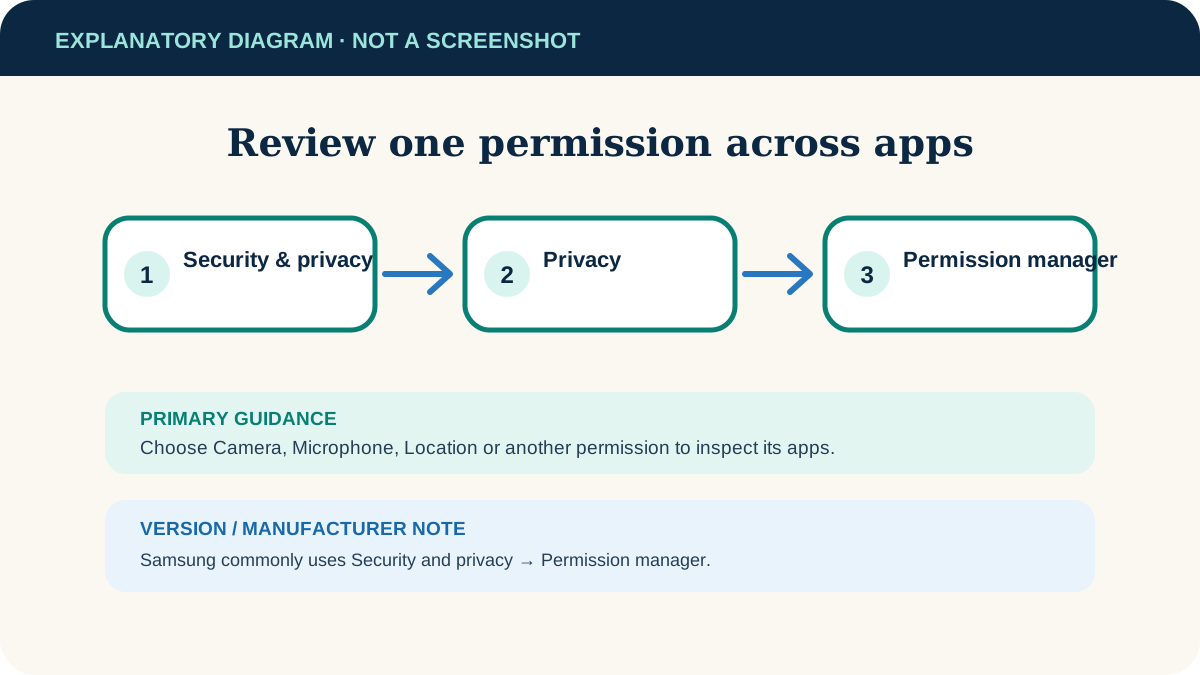
To review a permission across apps, open Settings → Security & privacy → Privacy → Permission manager on supported Android versions. Choose Camera, Microphone, Location or another type, then inspect the allowed and denied apps.
Build a useful permission review routine
Review permissions after installing an unfamiliar app, when a feature behaves unexpectedly, or when Privacy Dashboard shows access you did not expect. Focus on whether a permission supports a feature you actually use rather than removing access at random.
Understand choices and solve permission problems
“Allow all the time” is missing
Android reserves background access for certain permissions, particularly location, and apps must qualify for it. Use the choices Android presents.
The permission turns off later
Android can pause unused apps and remove permissions. Re-enable access only if you still use and trust the app.
The setting path looks different
Search Settings for “Permission manager” or open the app’s info page by holding its icon and selecting App info.
A managed device blocks changes
Work profiles and parental controls can enforce permissions. Contact the administrator or family manager.
Useful next steps
These related tasks often come before or after this one:
- Back Up Android Photos with Google Photos and Check Completion for the next related task.
- Free Up Storage on Android Without Losing Important Files for the next related task.
Official sources
These instructions were checked against the following first-party documentation on October 12, 2026.