Scan a Paper Document to PDF with Google Drive on Android
Capture clean pages, adjust the crop and filter, add multiple pages and save a searchable PDF to the intended Drive folder.
On this page
Use Drive’s camera button, adjust each page and save as PDF
Open the Google Drive app, tap the Camera button, frame the document and capture it. Adjust crop, rotation and filter; use Add for more pages. Tap Done, name the file, choose .pdf, select the Drive folder and tap Save.
Google Drive mobile app on Android. Google’s current documentation also covers iOS, but button placement can differ.
Researched from official software documentation; not independently tested across every platform, application version or paid plan. In-step visuals are labelled explanatory diagrams, not application screenshots.
Prepare for a readable scan
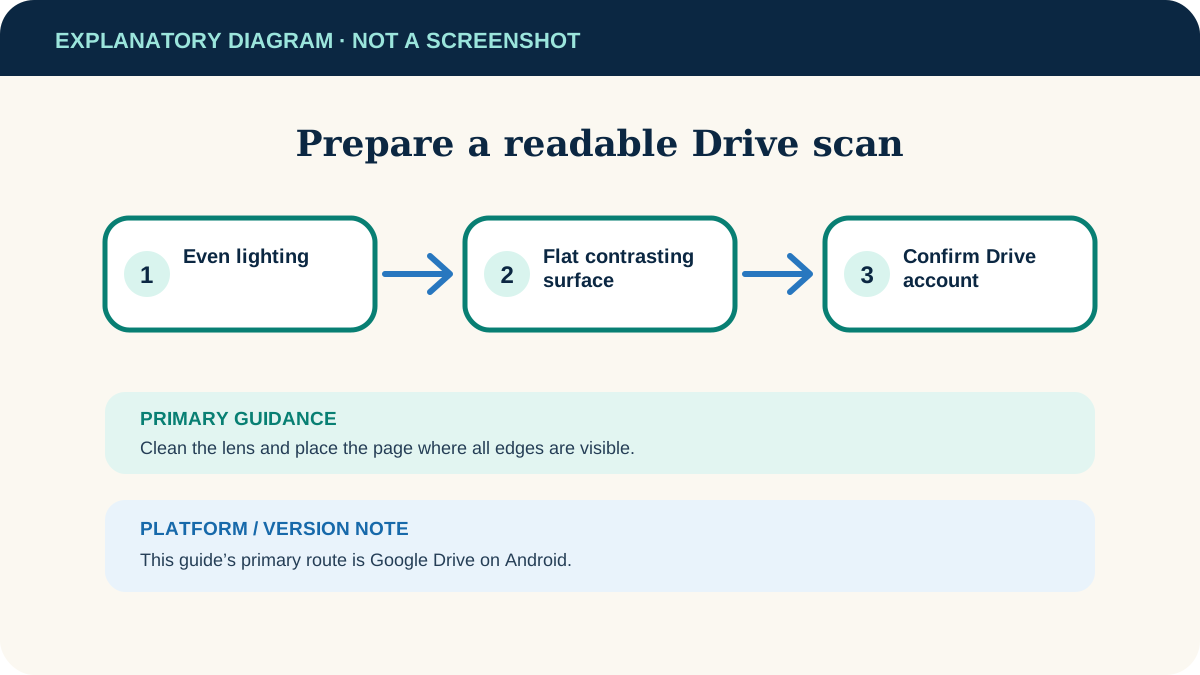
- Use even light without a strong shadow from the phone or your hands.
- Place the page on a plain, contrasting surface so Drive can detect its edges.
- Flatten folds and remove clips that lift the paper.
- Check which Google account is active and create the intended Drive folder before scanning sensitive pages.
- Clean the camera lens; a fingerprint can make text look soft even when focus appears correct.
Capture and save the document
- 1
Open Drive’s scanner
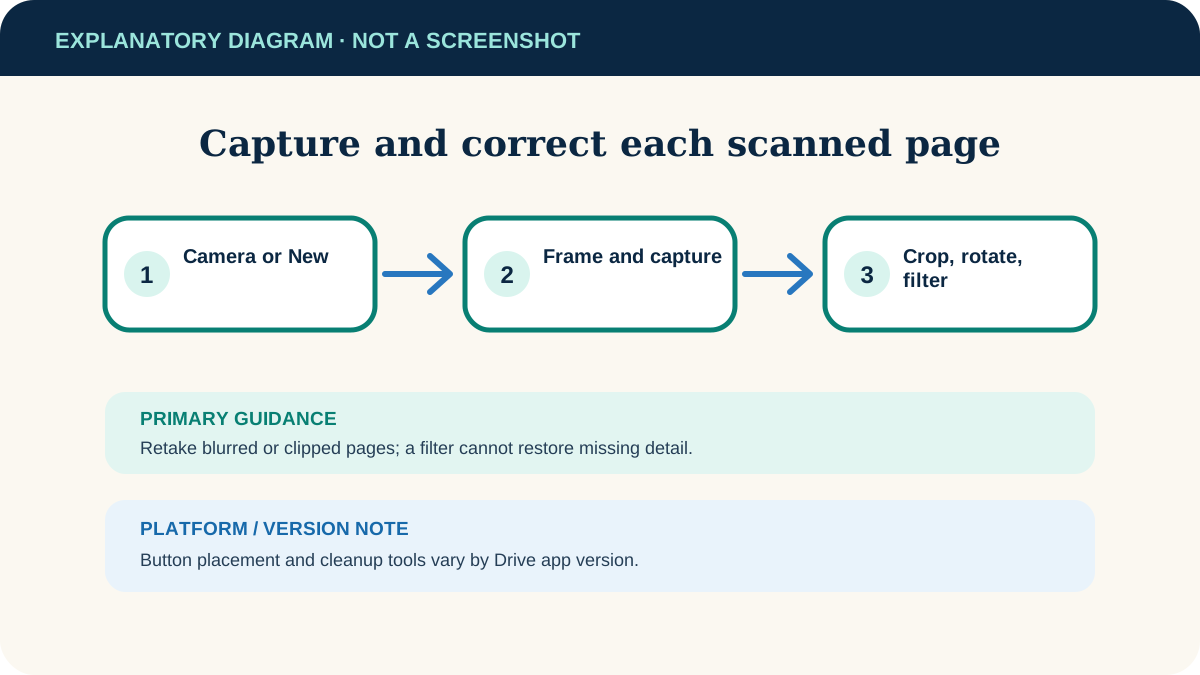
Open Google Drive and tap the Camera button at the lower right. If the button is not visible, update the Drive app and check the New menu.
- 2
Frame the page
Hold the phone parallel to the document. Drive displays a blue outline around the detected page. Use automatic capture or switch to manual when the edge detection is uncertain.
- 3
Adjust the scan
Use Crop and rotate to align edges, Filter for colour or greyscale and Clean to remove small marks where available. Retake a page that is blurred or clipped.
- 4
Add the remaining pages
Tap Add for each extra page and keep them in reading order. Delete an accidental page before finishing.
- 5
Choose the output
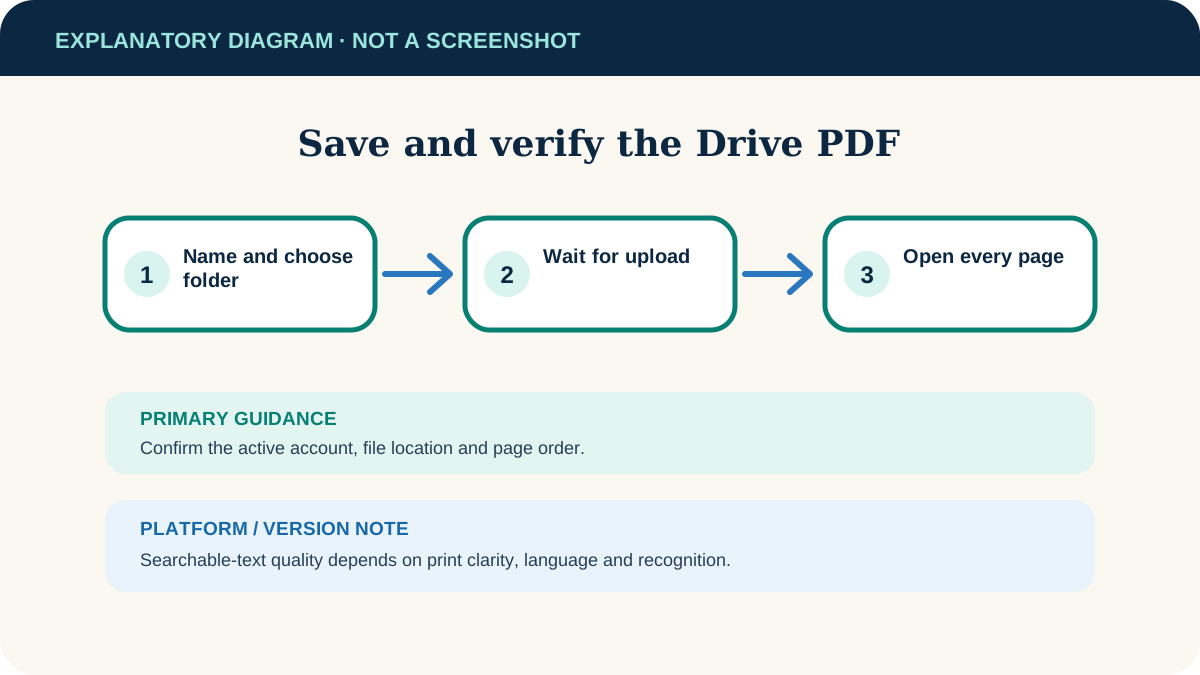
Tap Done, enter a meaningful filename, choose .pdf and select the target Drive folder under Location.
- 6
Save and wait for upload
Tap Save. Keep the app online long enough for the upload to finish, especially for many colour pages.
Verify the finished PDF
- 1
Open it from Drive
Navigate to the chosen folder and open the saved PDF. This confirms both the filename and location.
- 2
Read every page
Zoom into small text, check corners and confirm no page is duplicated, missing or rotated.
- 3
Check searchability
Google describes Drive scans as searchable PDFs, but recognition quality depends on the page and language. Search for a distinctive printed word; do not assume handwriting was recognised.
- 4
Review sharing access
Open the file’s sharing details before sending a link. Keep General access restricted unless a wider audience is intentional.
- 5
Retain originals appropriately
A scan is convenient, but some institutions require the physical original. Follow the relevant legal, financial or workplace retention rule.
Fix poor scans and upload problems
The crop cuts off an edge
Switch to manual capture, include more background around the page and adjust the crop handles afterward.
Text is blurry
Retake the page in brighter light, hold the phone steadier and wait for focus. A filter cannot restore detail that was never captured.
The file is larger than expected
Greyscale or black-and-white can reduce unnecessary colour data for plain text. Check that the result remains readable before discarding the first version.
The file is in the wrong account
Move or rescan it into the correct account only if policy allows. Delete the unintended cloud copy and empty its bin if confidentiality requires complete removal.
The upload is pending
Connect to a stable network and reopen Drive. Check whether the app is restricted to Wi-Fi or background data is limited.
Useful next steps
These related tasks often come before or after this one:
- Combine scanned PDFs and arrange their pages when separate scans need to become one ordered document.
- Find downloaded files on Android if you downloaded a document that belongs with the scan.
Official sources
These instructions were checked against the following first-party documentation on October 12, 2026.