Back Up Android Photos with Google Photos and Check Completion
Turn on Google Photos backup, include the device folders you want and verify that important photos finished uploading before deleting anything.
On this page
Enable Backup, choose folders, then wait for “Backup complete”
In Google Photos, select your profile picture, open Photos settings → Backup and turn Backup on for the correct Google Account. Review device folders and data use, then return to the profile menu until it reports Backup complete.
Google Photos on Android with a signed-in Google Account and available Google storage.
Researched from official documentation; not independently tested across Android manufacturers. In-step visuals are labelled explanatory diagrams, not Android screenshots.
Turn on backup for the right account
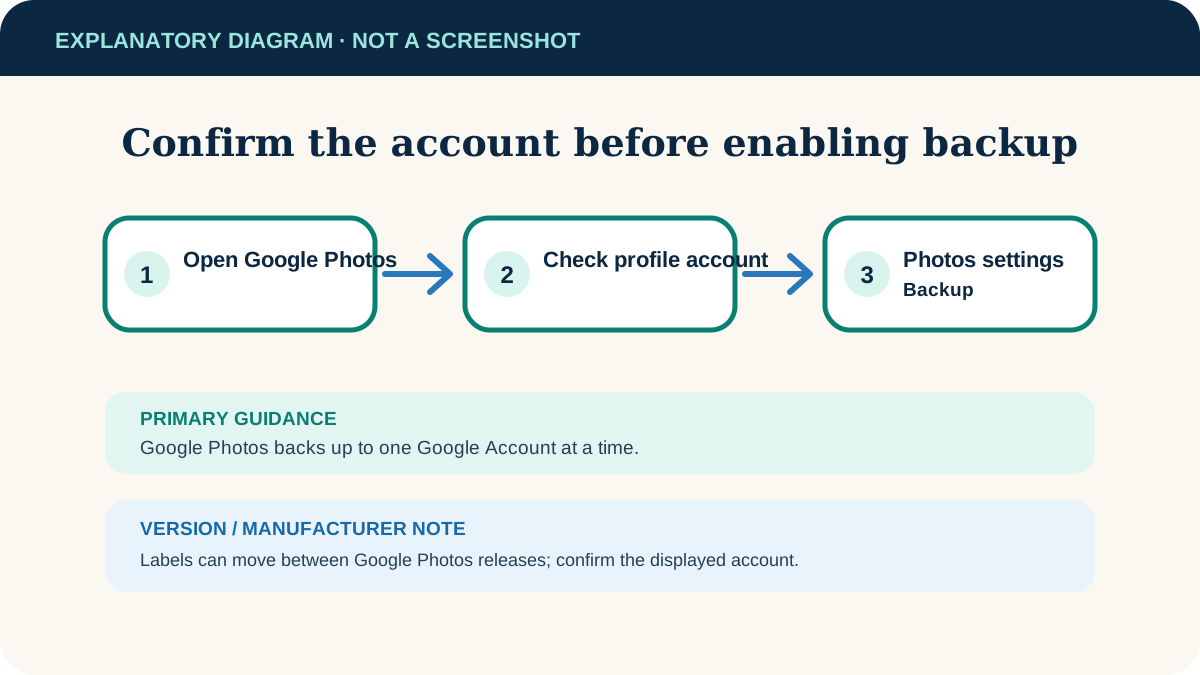
- 1
Open Google Photos
Select your profile picture or initial and confirm the displayed Google Account is the one that should hold the backup.
- 2
Open Backup settings
Choose Photos settings → Backup, then turn Backup on. Google Photos backs up to one Google Account at a time.
- 3
Choose backup quality
Review the quality option and its storage effect. Either setting uses your Google Account storage under current Google Photos rules.
- 4
Review mobile-data use
Choose whether photos or videos may upload over mobile data. Use Wi‑Fi-only behaviour if your data plan is limited.
Include the device folders you actually need
Camera photos are not the only images on a phone. In Backup settings, open Back up device folders and enable only useful folders such as screenshots or images saved by a messaging app. Leaving a folder off means its contents may remain only on the device.
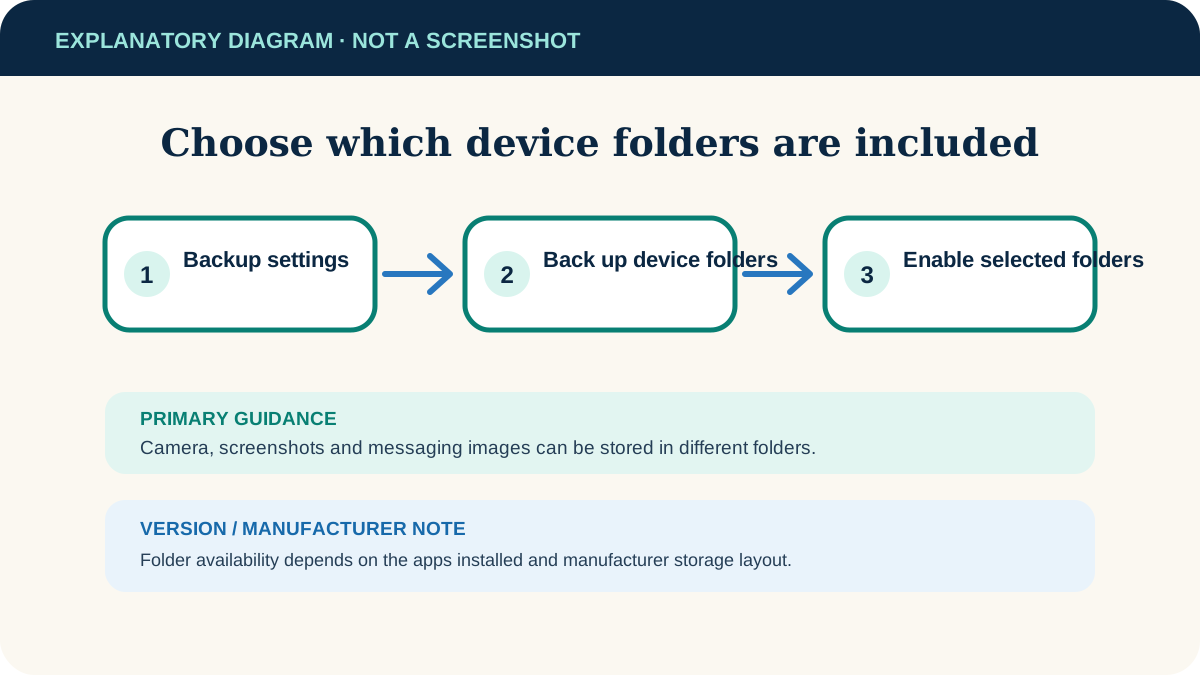
Check that backup really finished
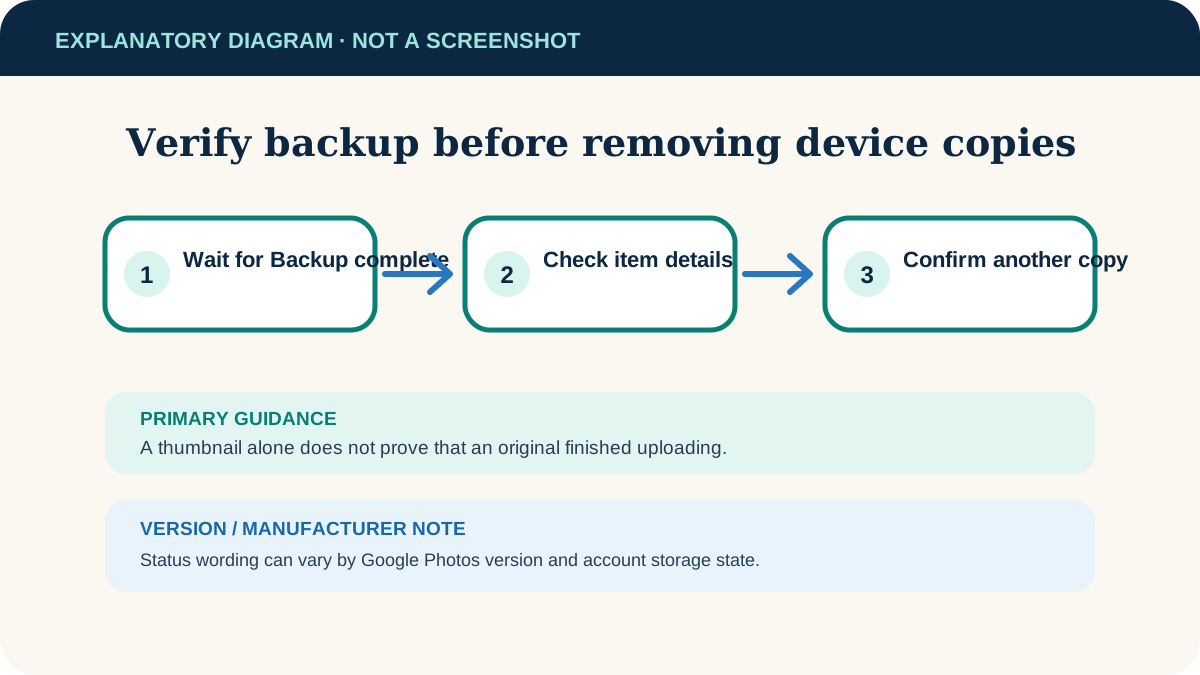
- 1
Check overall status
Select your profile picture. Wait until the status reads Backup complete; “Backing up” or “Preparing backup” is not completion.
- 2
Check an important item
Open the photo or video, select More → About and inspect its backup details. Labels can vary slightly by app release.
- 3
Verify from another session when practical
Open photos.google.com in a trusted browser with the same account and confirm several recent items appear.
- 4
Keep a second copy for irreplaceable files
A synced cloud library is helpful but accidental deletion or account loss can propagate. Export or copy important originals to another protected location.
Backup is stuck
Connect to a reliable network, plug in the phone, open Google Photos and check the status message for storage, battery or data restrictions.
Only camera photos appear
Return to Back up device folders and enable the missing folder.
The wrong account is shown
Do not delete anything. Switch to the intended account, confirm its storage and configure backup there.
Decide what to keep on the phone
Once the status is complete and important items are verified, Google Photos can help free device space by removing eligible local copies. Treat that as a separate deletion decision: read the confirmation carefully, keep irreplaceable files in another independent location and confirm you can access the cloud copies first.
Useful next steps
These related tasks often come before or after this one:
- Free Up Storage on Android Without Losing Important Files for the next related task.
- Transfer Files Between Android and Windows with a USB Cable for the next related task.
Official sources
These instructions were checked against the following first-party documentation on October 12, 2026.