Free Up Storage on Android Without Losing Important Files
Check what is using phone storage, remove reviewed downloads, clear cache safely and understand the difference between cache and app data.
On this page
Review large files first; clear cache before clearing app storage
Open Settings → Storage and inspect the largest categories. Use Free up space or your Files app to review individual downloads and media. Clear an app’s cache for temporary data; avoid Clear storage unless you understand that it permanently removes that app’s local data.
Current Android phones and tablets; exact labels vary by manufacturer. Some Google-documented options require Android 14 or later.
Researched from official documentation; not independently tested across Android manufacturers. In-step visuals are labelled explanatory diagrams, not Android screenshots.
Identify the storage problem
- 1
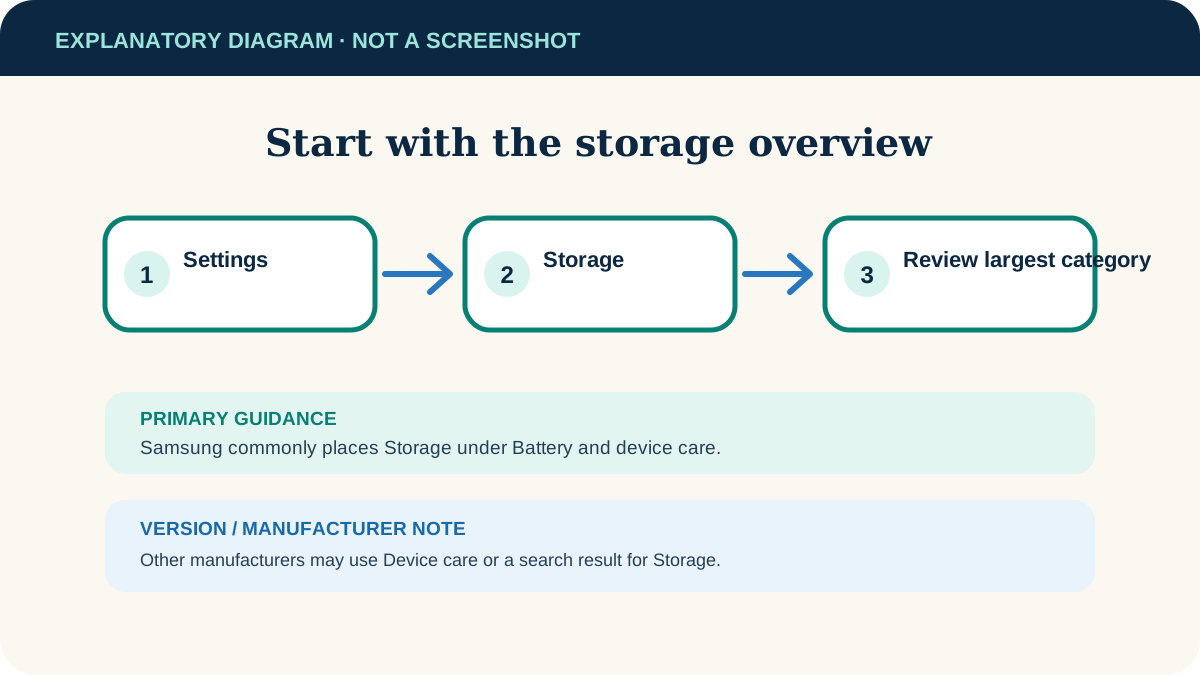
Open Storage settings
Open Settings and select Storage. On some phones it is under Device care or Battery and device care.
- 2
Read the categories
Look for a category that is unusually large: Photos and videos, Apps, Audio, Documents or Trash. Storage is permanent space; it is not the same as memory used by running apps.
- 3
Check the Files app
Open your device’s Files app or Files by Google. Sort a category by size so the biggest candidates appear first.
- 4
Set a practical target
Free enough space for the blocked update, download or recording, then stop. Deleting broadly “just in case” creates unnecessary risk.
Remove files you have actually reviewed
Google’s Android guidance puts manual review ahead of blind deletion. In Settings → Storage → Free up space, choose a category, select files and move them to the bin. If your phone uses a manufacturer file manager, the category names may differ.
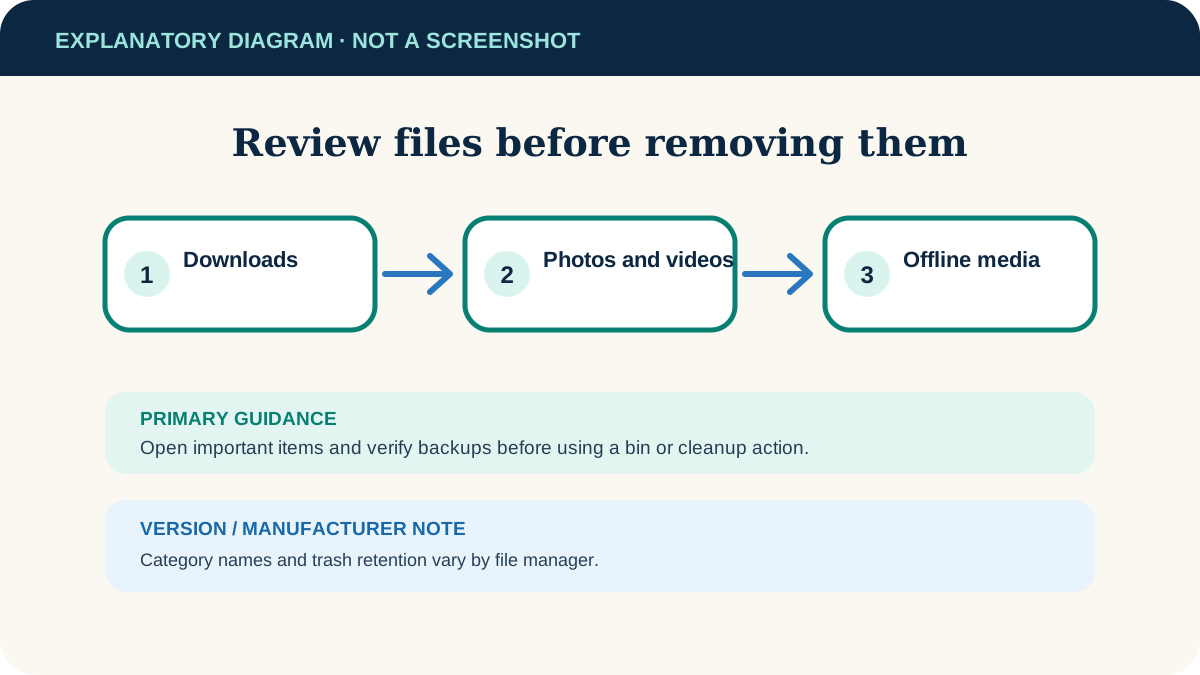
- Downloads: open PDFs, ZIP files and installers before deleting them. A completed download may still be your only copy.
- Photos and videos: verify cloud backup inside the photo service, not merely by seeing a thumbnail.
- Offline media: remove downloads inside the app that created them—such as a video or music app—so its catalogue stays consistent.
- Trash or bin: items may continue using space until the bin is emptied. Empty it only after a final check.
Handle apps and cache carefully
- 1
Uninstall an app you no longer use
Use Settings or Google Play so Android removes the app cleanly. Check whether the app stores important work only on the device.
- 2
Consider app archiving
Google Play can automatically archive infrequently used apps while keeping their icon and personal data. You can control this under Play Store → profile photo → Settings → General.
- 3
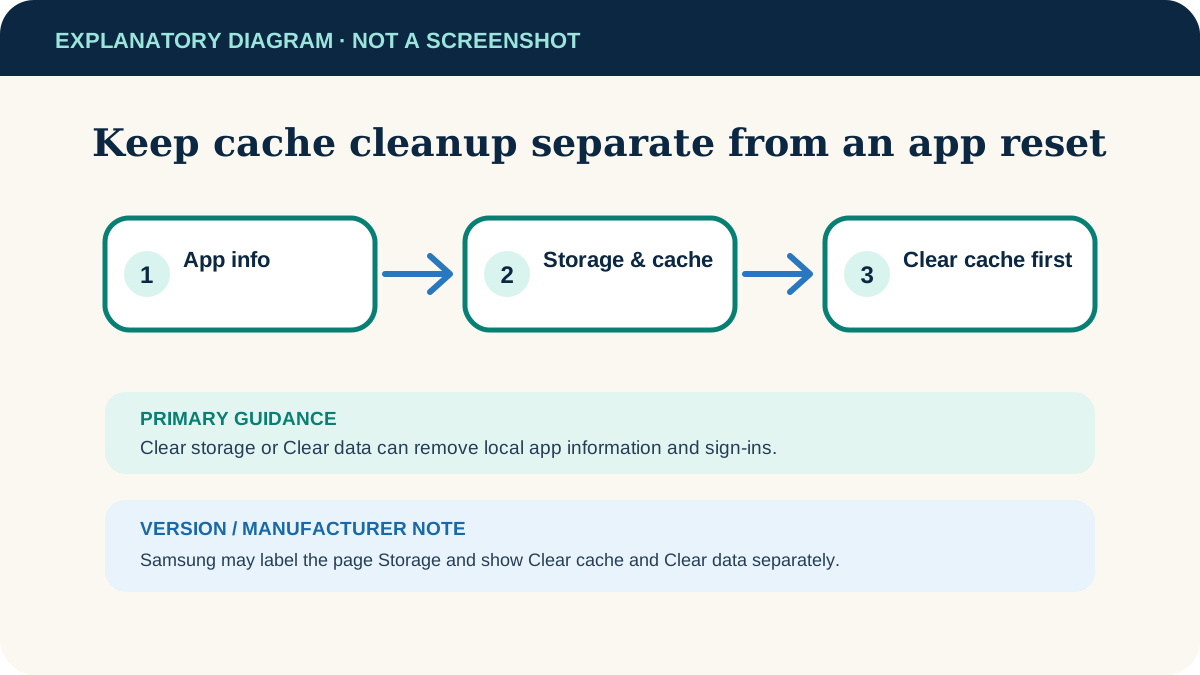
Clear cache for a problem app
Open the app’s information page, choose Storage & cache, then Clear cache. The app may be slower the next time it opens while temporary data is rebuilt.
- 4
Treat Clear storage as a reset
Clear storage permanently deletes that app’s local data. Use it only when you intend to reset the app and have confirmed anything important is synced or exported.
If Android still reports low storage
System or Other is very large
Restart the phone and install available system updates. Manufacturer tools may break down this category differently. Do not use an unknown “cleaner” app that requests broad file access.
Photos reappear after cleanup
Check whether another gallery, messaging or backup app is downloading local copies. Review that app’s storage and download settings.
An app grows again quickly
Look inside the app for offline downloads, saved maps, message media or editing caches. Clearing cache treats the symptom if the app is configured to download the same data again.
You need to keep everything
Transfer files to a computer or supported external storage, then verify the copies before removing the phone versions. Cloud storage is another option, but make sure files are fully uploaded and accessible.
Useful next steps
These related tasks often come before or after this one:
- Find and review Android downloads before deleting downloaded files you may still need.
- Copy Android files to a Windows PC to preserve photos or documents before removing them from the phone.
Official sources
These instructions were checked against the following first-party documentation on October 12, 2026.