Show File Name Extensions in Windows 11
Make extensions such as .pdf and .jpg visible in Windows 11 File Explorer, understand what they mean and avoid unsafe renaming.

On this page
Turn on File name extensions from File Explorer’s View menu
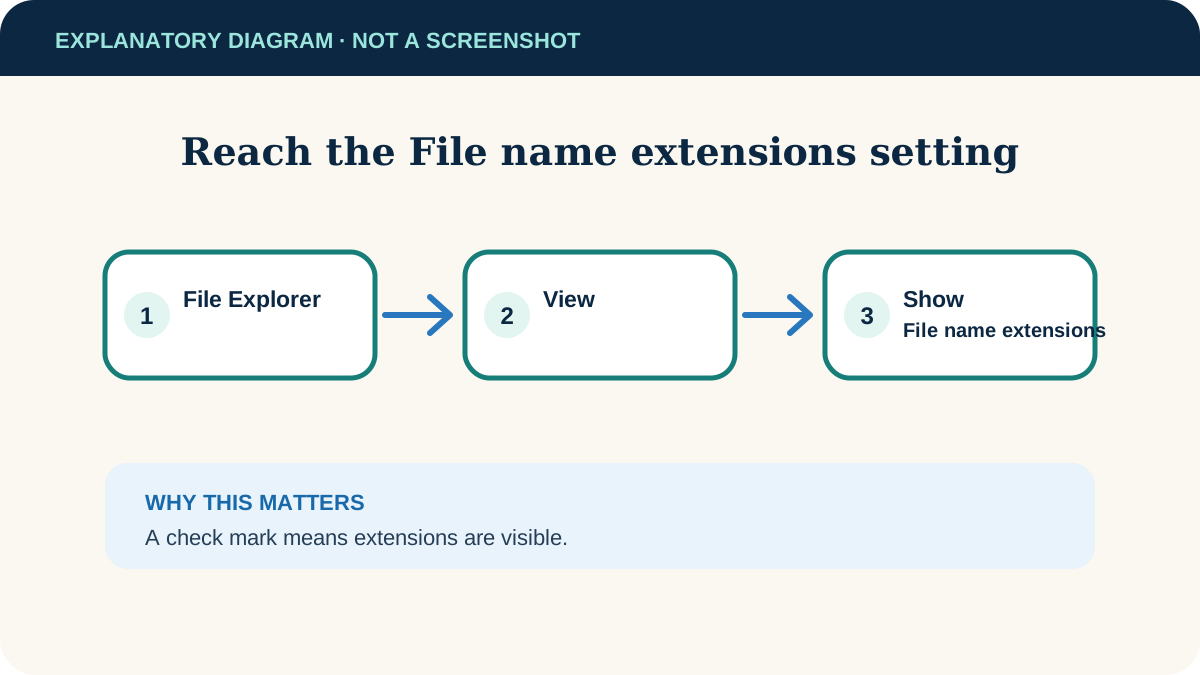
Open File Explorer, choose View → Show, then select File name extensions. Windows immediately adds extensions such as .docx, .pdf and .jpg to filenames in File Explorer.
Windows 11 File Explorer. The menu wording differs in Windows 10.
Researched from official documentation; not independently lab-tested on every device. In-step visuals are labelled explanatory diagrams, not Windows screenshots.
Show extensions in File Explorer
- 1
Open File Explorer
Select its folder icon on the taskbar or press Windows key + E. Open a folder containing familiar documents or pictures.
- 2
Open the View menu
On the command bar, select View, then point to or select Show.
- 3
Enable the setting
Select File name extensions. A check mark indicates that the setting is on.
- 4
Confirm the result
Look for endings such as .pdf, .jpg or .docx. Folder names normally do not gain extensions.
Use the extension without changing the file
The extension helps Windows choose an app and helps you distinguish similarly named files. It is useful when checking a download or choosing the right attachment.
- Do not treat the extension as proof of safety: scan unexpected downloads and confirm the sender.
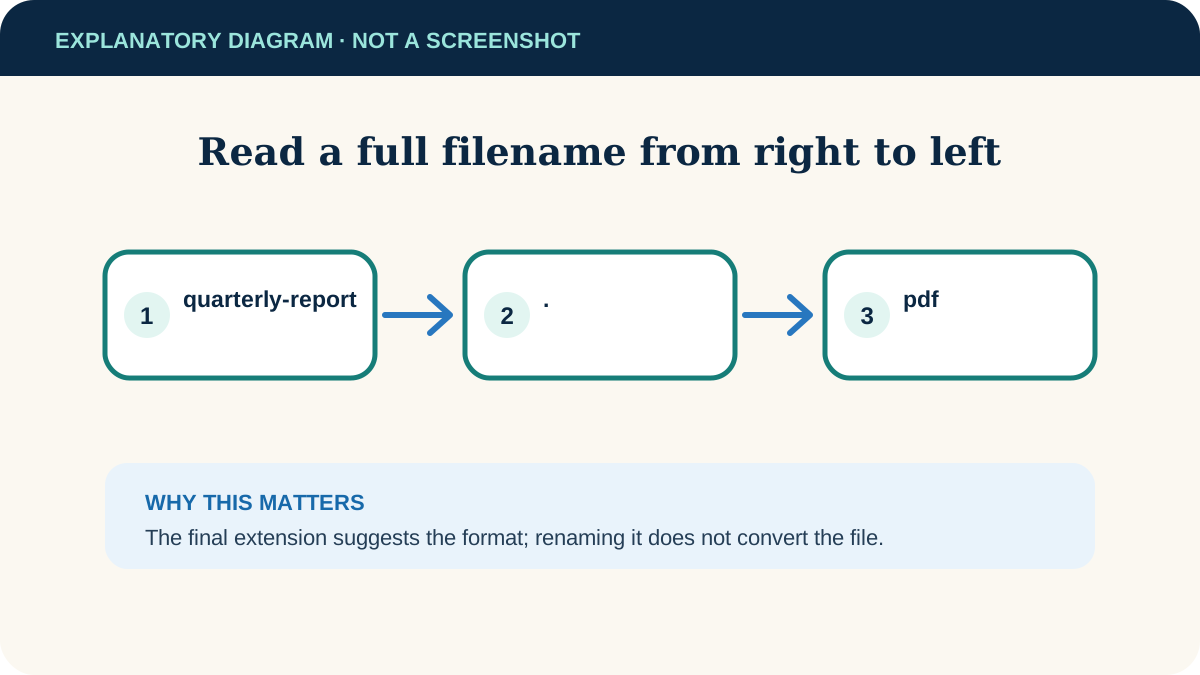
- Do not rename formats: changing report.docx to report.pdf does not create a PDF. Use the app’s export command instead.
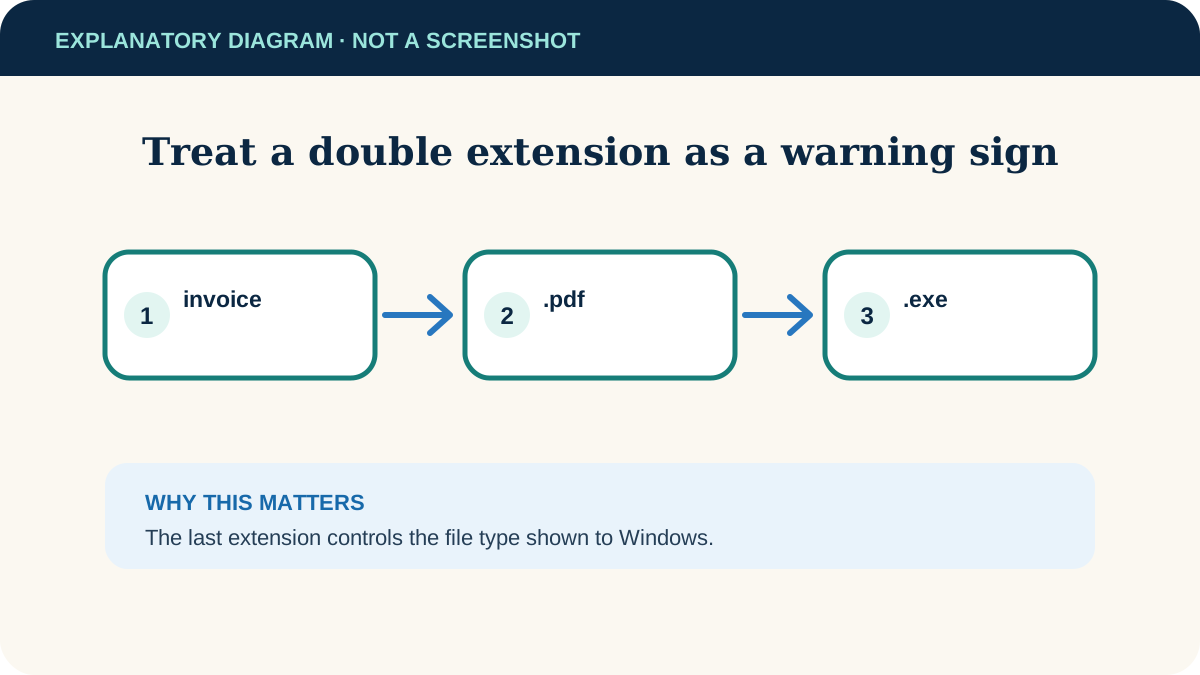
- Watch for double extensions: a name such as invoice.pdf.exe is an executable file, not a PDF.
Hide extensions again if needed
Return to View → Show and select File name extensions again to remove its check mark. Hiding the extension changes only what File Explorer displays; it does not rename or convert the file.
If extensions still do not appear
The menu item is already checked
Refresh the folder with F5 or close and reopen File Explorer. Confirm you are looking at files rather than folders.
Only some names look unchanged
Some files have no extension. Open Properties and inspect “Type of file” before renaming anything.
A work computer changes the setting back
Your organisation may enforce File Explorer settings. Ask the administrator rather than repeatedly altering managed settings.
A file stopped opening after a rename
Undo the rename with Ctrl+Z or restore the original extension if you know it. Do not guess repeatedly; use a backup or ask the sender for a fresh copy.
Useful next steps
These related tasks often come before or after this one:
- Change the Default App for a File Type in Windows 11 for the next related task.
- Find Large Files in Windows 11 and Move Them to a USB Drive for the next related task.
Official sources
These instructions were checked against the following first-party documentation on October 12, 2026.