Free Up Space in Windows 11 Without Deleting the Wrong Files
Use Windows storage tools to see what is full, remove reviewed temporary files and configure Storage Sense without risking personal folders.
On this page
Start with Cleanup recommendations, then configure Storage Sense
Open Settings → System → Storage → Cleanup recommendations. Review each group and remove only items you recognise. Then open Storage Sense and choose a schedule. Leave Downloads cleanup disabled unless you genuinely want Windows to remove older downloads.
Windows 11; most steps also exist in Windows 10 with slightly different labels.
Researched from official documentation; not independently lab-tested on every device. In-step visuals are labelled explanatory diagrams, not Windows screenshots.
See what is actually using the drive
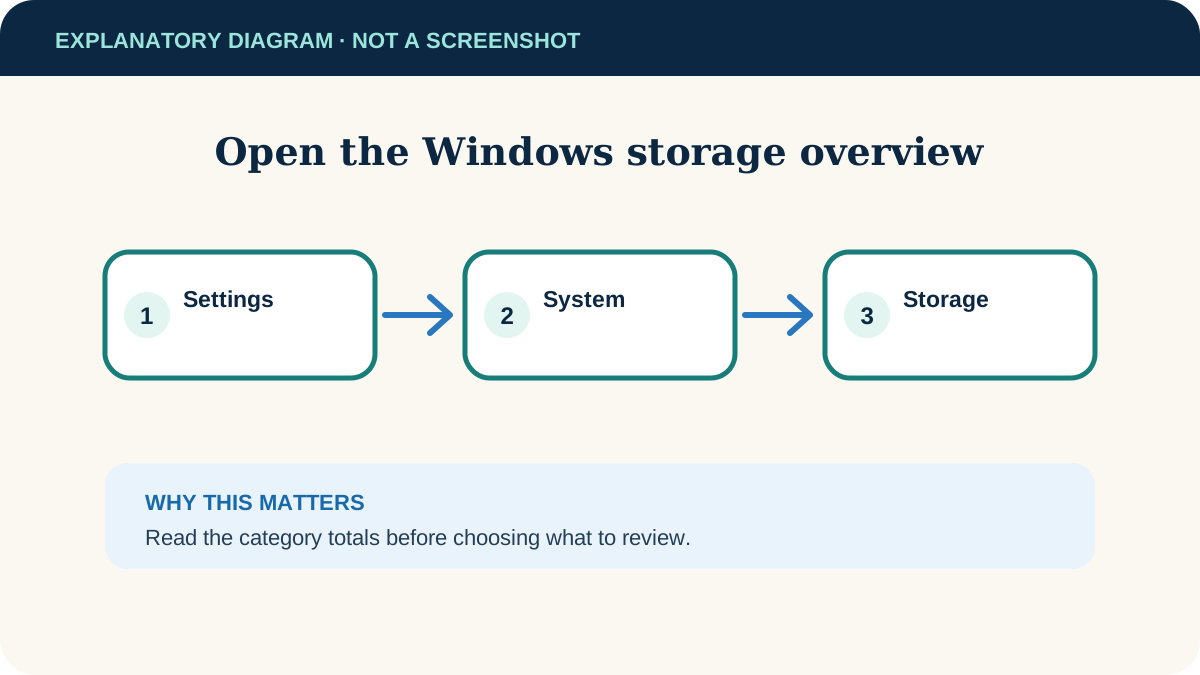
Open Start → Settings → System → Storage. Wait for Windows to calculate the categories on the system drive, normally C:. The coloured bar tells you whether the drive is close to full; the category list separates installed apps, temporary files, documents and other content.
- 1
Open the detailed view
Select a category rather than guessing from folder names. Installed apps helps you find large programs; Temporary files lists removable system-generated items.
- 2
Check other drives separately
Storage Sense manages only the system drive. For another drive, open Advanced storage settings → Storage used on other drives.
- 3
Record your starting space
In File Explorer, open This PC and note the free space shown under C:. This makes the outcome measurable without claiming every suggested item is safe to remove.
Use Cleanup recommendations first
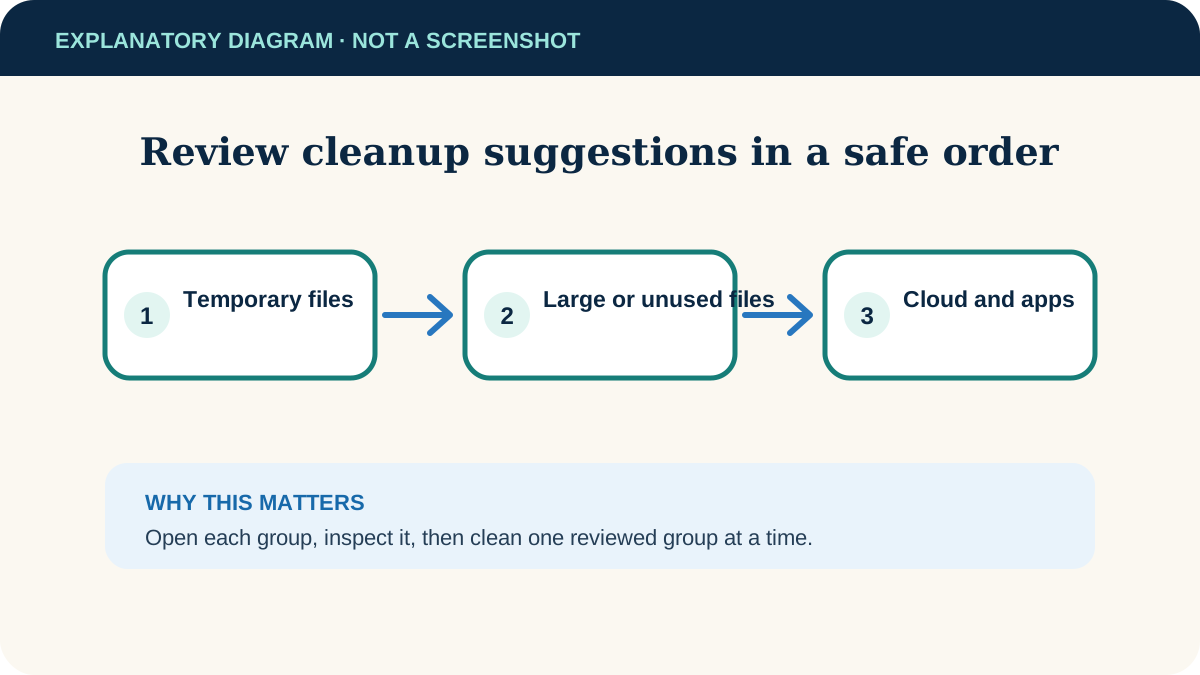
Cleanup recommendations is the clearest manual starting point because it presents candidates in groups and shows an estimated saving. Open Settings → System → Storage → Cleanup recommendations.
- 1
Review temporary files
Expand the group and read every label. Thumbnails and ordinary temporary files can be regenerated. Do not select Previous Windows installation(s) if you may need to return to the earlier version.
- 2
Review large or unused files
Sort by size where offered. Open or locate unfamiliar files before selecting them; a large video or archive may be valuable even if Windows considers it old.
- 3
Review cloud and app suggestions
A cloud file made online-only is not deleted from the cloud, but you will need an internet connection to open it again. Uninstall only apps you recognise and can reinstall if necessary.
- 4
Clean one group at a time
Select Clean up for the reviewed group. Recheck free space before moving to another category so you stop once you have enough room.
Configure Storage Sense conservatively
Storage Sense can remove temporary items automatically. Go to Settings → System → Storage, switch it on, then select Storage Sense to inspect its schedule and deletion rules.
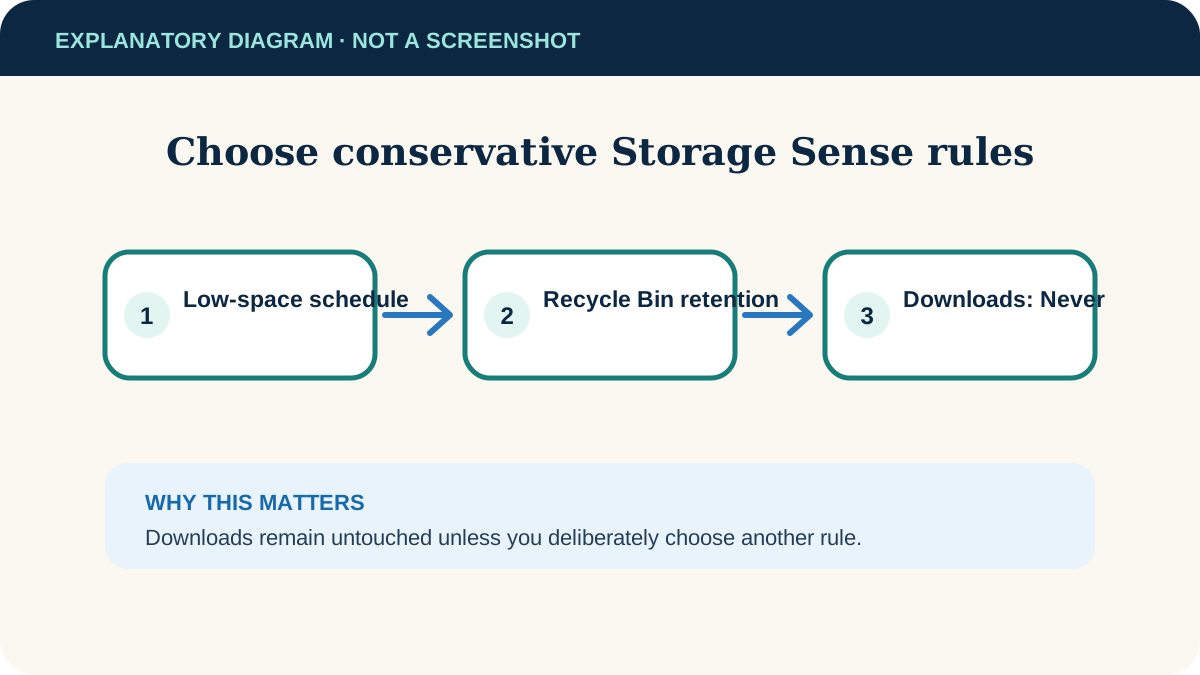
- Run frequency: “During low free disk space” is a cautious default for many people.
- Recycle Bin: choose a retention period only if that matches how long you normally need to recover mistakes.
- Downloads: leave this set to Never unless the folder is deliberately temporary. A file being old does not mean it is unneeded.
- Cloud content: “online-only” frees local storage but does not permanently delete the cloud copy. Files marked “Always keep on this device” are exempt.
If the drive is still full
Apps are the largest category
Sort installed apps by size. Remove a program through its normal uninstall option rather than deleting its folder manually. For games or specialist software, use the app launcher’s move/uninstall tools.
Personal files are the largest category
Move videos, pictures or archives to a verified external drive. Open a few files from the destination before deleting the originals, then empty the Recycle Bin only after the copy is confirmed.
Windows Update still needs space
Connect external storage if Windows offers that option during the update. Microsoft documents this as a way to reduce the temporary free space needed on the system drive.
Space immediately disappears again
Reopen Storage to identify the growing category. A syncing app, downloaded game, video editor cache or repeated update failure may be creating new data; do not keep deleting random system folders.
Finish by returning to This PC and comparing the free-space value with your starting number. Keep the amount you need for updates and daily work rather than trying to make the drive look completely empty.
Useful next steps
These related tasks often come before or after this one:
- Move large files to a USB drive when Storage recommendations shows files you want to keep rather than remove.
- Change where Chrome saves downloads to keep future browser downloads off a crowded system drive.
Official sources
These instructions were checked against the following first-party documentation on October 12, 2026.